
Replacing a laptop battery can restore your device’s portability and performance. Today BattAussie experts share following comprehensive guide covers safety procedures, brand-specific replacement steps, and calibration instructions for Dell, HP, Lenovo, and Toshiba laptops. Always prioritize safety when working with lithium-ion laptop batteries.
Section 1: Essential Safety Precautions
Understanding Lithium-Ion Battery Risks
Lithium-ion batteries require special handling precautions due to their potential fire and injury risks if mishandled. These batteries must never be exposed to extreme temperatures, physical damage, or short circuits. Keep replacement batteries dry, cool, and protected from sunlight.
Static Electricity Protection
Before beginning any laptop repair work, take precautionary measures against static discharge which can damage sensitive electronic components. Always touch a grounded metal object or the laptop’s metal case to discharge yourself before handling internal components. For maximum protection, use an anti-static wrist strap connected to a grounded surface.
Battery Discharge Protocol
Always discharge the battery before removal to minimize electrical risks. For laptops with removable batteries, use the device until it automatically shuts down. For internal batteries, unplug the AC adapter and allow the laptop to run until it powers off completely.
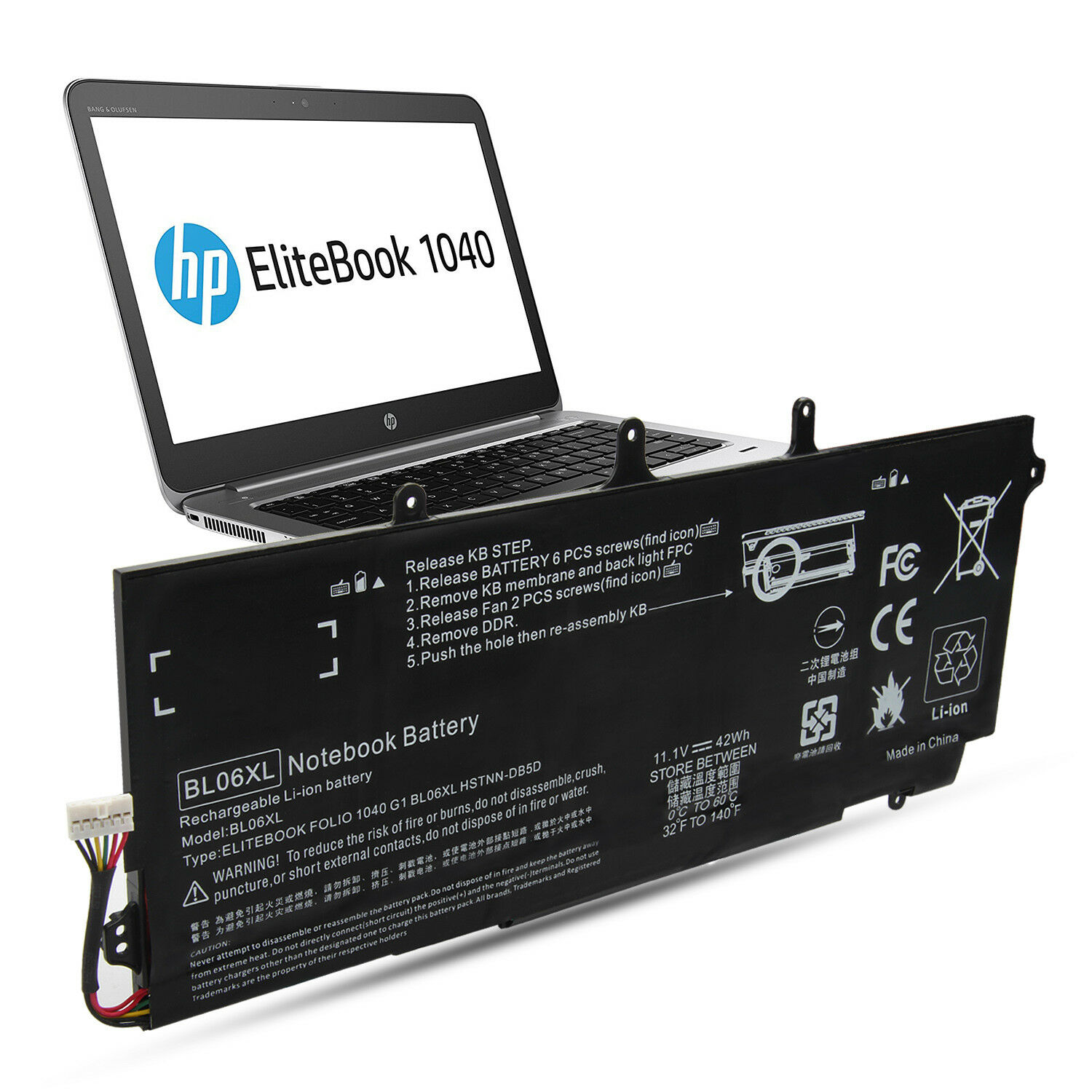
Essential Safety Rules
– Never puncture, crush, or expose batteries to fire
– Always use non-sparking tools when working near batteries
– Only use manufacturer-approved HP HS04 replacement batteries designed specifically for your device
– Never allow Li-ion batteries to drop below 2V/cell for extended periods as this can cause permanent damage
– Stop immediately if you notice swelling, overheating, or unusual odors from the battery
Section 2: Required Tools & Preparation
Essential Tools Kit
– Phillips #0 and #1 screwdrivers (magnetic tips preferred)
– Plastic pry tools or spudgers (non-conductive)
– Anti-static wrist strap
– Small container for screws
– Torx screwdrivers (for some Dell and HP models)
– Needle-nose pliers (for stubborn connectors)
Pre-Work Preparation
1. Backup Data: Ensure all important data is backed up before starting
2. Power Down: Completely shut down the laptop and unplug the AC adapter
3. Work Area: Set up a clean, well-lit workspace on a non-conductive surface
4. Organize Tools: Have all necessary tools within reach before beginning
5. Document Process: Take photos of screw locations and cable connections as you disassemble
Section 3: Brand-Specific Replacement Procedures
Dell Laptop Battery Replacement
General Dell Procedure:
1. Turn off your laptop completely
2. Remove the laptop’s back plate by unscrewing all bottom case screws
3. Disconnect the battery’s power connector from the motherboard
4. Remove screws securing the battery to the chassis (typically 1-3 screws)
5. Carefully lift and remove the old battery
6. Install the new battery, ensuring proper alignment
7. Reconnect the battery cable before securing with screws
8. Replace the bottom cover and all screws
Model-Specific Considerations:
– Inspiron Series: May require removing the entire bottom cover; be careful with plastic clips
– Latitude Series: Often uses captive screws that remain attached to the chassis
– G Series Gaming Laptops: Typically have larger batteries requiring careful handling of multiple connectors
– Important: Only use Dell-approved batteries purchased directly from Dell or authorized retailers
General HP Procedure:
1. Disconnect the power adapter from the laptop
2. Remove the bottom screws securing the chassis
3. Open the bottom cover carefully, releasing any clips
4. Disconnect the battery connector from the motherboard
5. Remove screws or adhesive securing the HP 807957-001 notebook battery
6. Install the new battery and reconnect the power cable first, then replace screws
7. Reassemble the laptop in reverse order
Model-Specific Considerations:
– Pavilion Series: May require removing rubber feet to access hidden screws
– Spectre Series: Often has more complex internal layouts requiring careful disassembly
– Business Series (EliteBook, ProBook): Typically designed for easier battery access with dedicated battery compartments
– Preparation: Always prepare the computer for disassembly following HP’s specific guidelines for your model
Lenovo Laptop Battery Replacement
General Lenovo Procedure:
1. Ensure the laptop is completely shut off
2. Turn the laptop over to access the bottom panel
3. Remove the base cover screws and lift off the bottom case
4. Disconnect the battery cable from the motherboard
5. Remove screws securing the battery to the chassis
6. Carefully lift out the old battery
7. Install the new battery, aligning it correctly before screwing into place
8. Reconnect the battery cable and reassemble the laptop
Model-Specific Considerations:
– ThinkPad Series: Often features user-replaceable batteries with manual latches
– Yoga/IdeaPad Series: May require complete bottom cover removal
– X Series (X390, etc.): Typically has straightforward battery access but requires careful connector handling
– P Series Workstations: Often have larger batteries requiring attention to multiple mounting points
– OEM Requirement: Always use Lenovo-approved batteries listed in the official parts list for your specific machine model
Toshiba Laptop Battery Replacement
General Toshiba Procedure:
1. Turn your laptop over to access the bottom
2. Save your work and turn the computer’s power off completely
3. For external batteries: Release the sliders or latches holding the battery
4. For internal batteries: Remove screws securing the bottom panel
5. Disconnect the Toshiba PA3817U-1BRS replacement battery connector from the motherboard
6. Remove mounting screws and carefully extract the old battery
7. Install the new battery and reconnect all components
8. Reassemble the laptop and verify functionality
Model-Specific Considerations:
– Satellite Series: Often has user-replaceable external batteries with sliding locks
– Portege Series: May require more complex disassembly procedures
– Legacy Models: Older Toshiba laptops may have different screw patterns and connector types
– Part Identification: Always note the battery’s part number/serial number before ordering replacements
Section 4: Post-Installation Calibration Instructions
Why Calibration is Essential
After installing a new battery, calibration ensures the battery management system accurately reports charge levels and maximizes performance. This process helps the laptop’s software understand the new battery’s capacity characteristics.
Standard Calibration Procedure
1. Initial Charge: Plug in the laptop’s AC adapter and charge to 100%
2. Extended Charging: Continue charging for at least 2 additional hours after reaching 100%
3. Full Discharge: Unplug the AC adapter and use the laptop normally until it automatically shuts down
4. Rest Period: Allow the laptop to rest for 5 hours after complete discharge
5. Final Charge: Reconnect the AC adapter and charge back to 100% without interruption
Advanced Calibration (For Persistent Issues)
If the battery indicator remains inaccurate after the standard procedure:
– Perform 3 complete deep discharge/recharge cycles where the battery completely discharges and the system shuts down each time
– Use manufacturer-specific calibration tools when available (Dell Command | Power Manager, Lenovo Vantage, HP Support Assistant)
Ongoing Battery Maintenance
– Calibrate your battery every 30 discharge cycles to maintain accuracy
– Avoid keeping your laptop plugged in constantly at 100% charge for extended periods
– Store laptops with 40-60% charge if not in use for extended periods
– Keep the laptop in a cool, dry environment to maximize acer as10d51 battery lifespan
Section 5: Troubleshooting Common Issues
Battery Not Detected
– Recheck all connections and ensure the battery connector is fully seated
– Reset the laptop’s power management system by removing the battery and holding the power button for 30 seconds
– Update BIOS/UEFI firmware to the latest version
Inaccurate Charge Reporting
– Perform the calibration procedure again, ensuring complete discharge cycles
– Check for manufacturer-specific battery management software updates
– Reset battery statistics through system settings or manufacturer utilities
Overheating During Charging
– Ensure proper ventilation around the laptop
– Clean dust from cooling vents and fans
– Check for background applications causing excessive CPU usage
– If overheating persists, stop using the battery and contact the manufacturer
If at any point during the replacement process you notice battery swelling, leakage, unusual heat, or strange odors, stop immediately and place the battery in a fireproof container away from flammable materials. Contact your local hazardous waste disposal facility for proper disposal instructions.
By following this comprehensive guide, you can safely and effectively replace your notebook battery across major brands, ensuring optimal performance and longevity of your device. Remember that when in doubt, consulting your laptop’s official service manual or seeking professional assistance is always the safest option.